PROMOTION
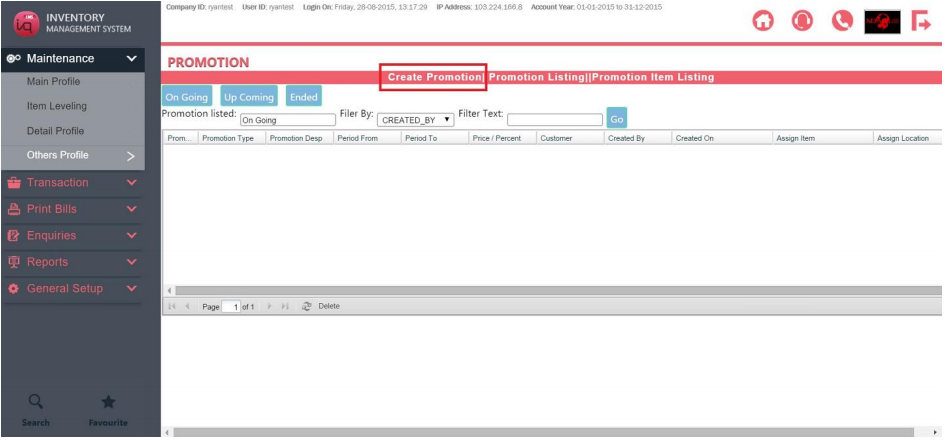
To set promotions, navigate to Maintenance – Others Profile – Promotion Profile
Then click on Create Promotion
You will be able to choose the different promotion types.
Please set the Promotion Period when the promotion will apply.
If the promotion only applies to one customer, you can select the customer now.
Enter the Promotion name in Description.
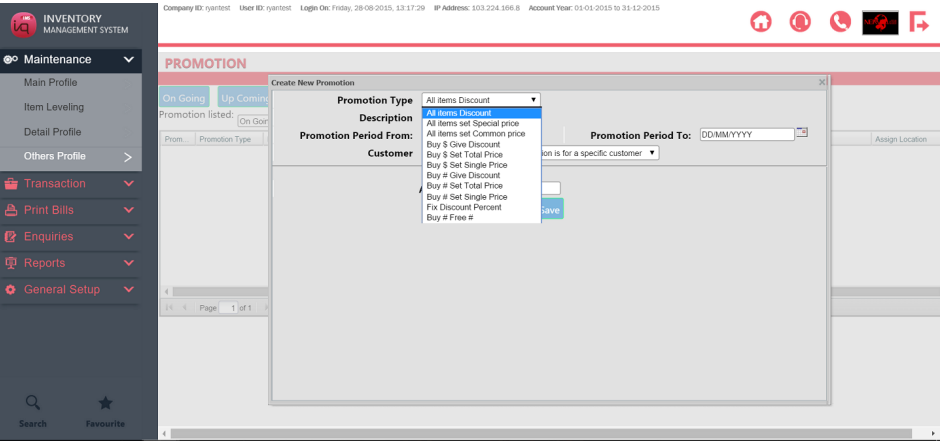
Details of different Promotions are stated as below
All items Discount – A common amount of discount on all items assigned
All items Set special price – Assign a unique price to each item assigned
All items Set common price – Assign a common price to all items assigned
Buy $ Give Discount – Once a designated amount of money is spent, a fixed discount (amount or percentage) is applied
Buy $ Set Total Price – Once a designated amount of money is spent, a fixed Nett price is applied
Buy $ Set Single Price – Once a designated amount of assigned money is spent, each unit assigned item becomes a fixed unit price
Buy # Give Discount – Once a designated quantity of assigned items is bought, a fixed discount (amount or percentage) is applied
Buy # Set Total Price – Once a designated quantity of assigned items is bought, a fixed Nett price is applied
Buy # Set Single Price – Once a designated quantity of assigned items is bought, each unit assigned item becomes a fixed unit price
Fix Discount Percent – A fixed percentage discount is applied to all assigned items
Buy # Free # – Once a designated quantity of assigned items is bought, a fixed quantity of assigned items is given for free
Press save when done
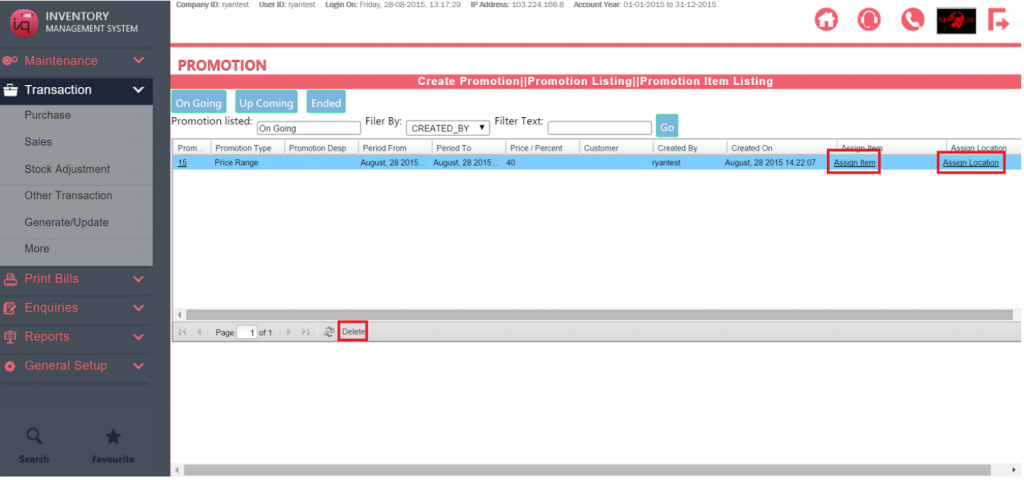
Click on Assign Items to decide which items are affected. You can click on multi select to select all items.
Click on Assign Location if the promotion only applies to certain locations.
To delete a Promotion, click anywhere on the promotion, then select delete.