Packing List
1) Go to Transaction > More > Packing List. It will show like this:
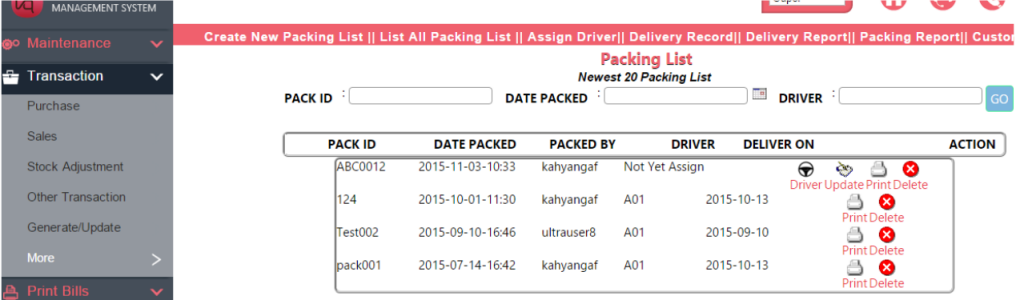
2) Click ‘Create Packing List’ to create a new packing list.
3) Bill type : Choose the bill type that you would like to create a packing list from.
4) Choose the date from and to.
5) Last used no is used for the Reference Number for packing list that you want to create.
6) Click ‘Go’.

7) After clicking ‘Go’ then it will show out the following.
8) Select the Sales Order from and to. Below is the example I created for your reference to view. After selecting the PO206, then click the ‘Go’.
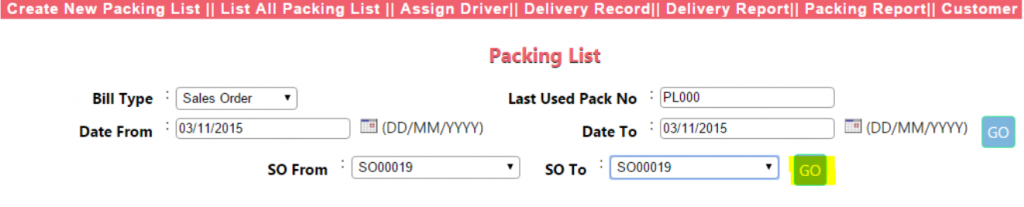
9) It will show the below after clicking ‘Go’.
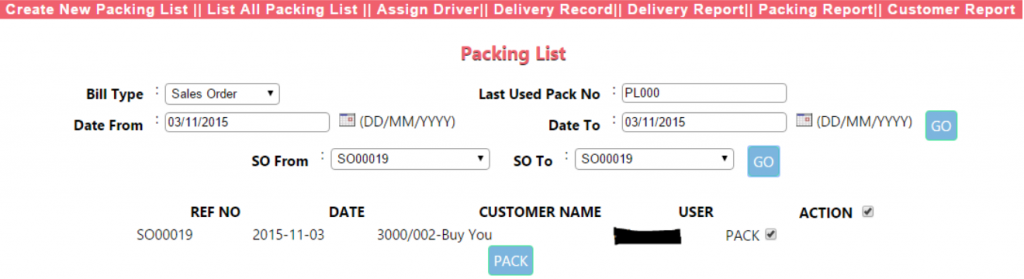
10) Tick ‘Pack’ below the ‘Action’ tab for the several Sales Order you would like to insert for this packing list and click ‘Pack’. It will show the below:
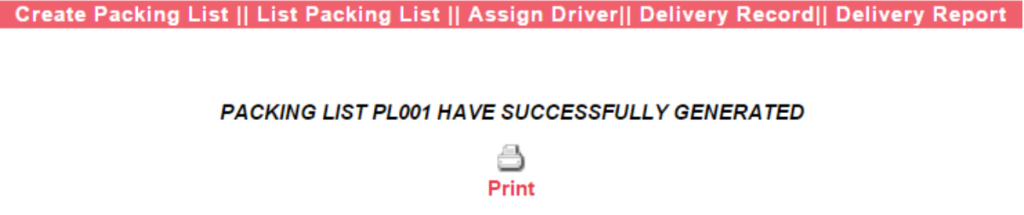
11) You may click ‘Print’ to print out the packing list.
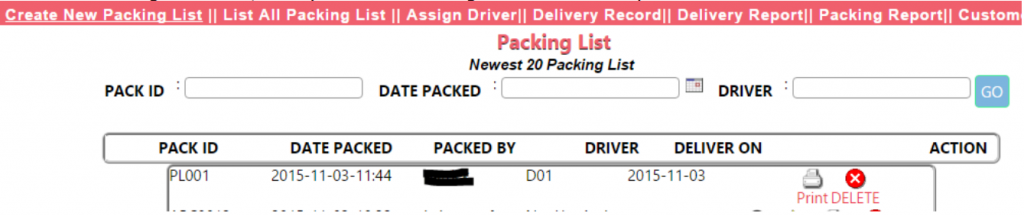
12) You may view the packing list by choosing ‘List Packing List’.

13) Click on ‘Driver’ (steering icon) to assign the name of the driver. It will show as per below:
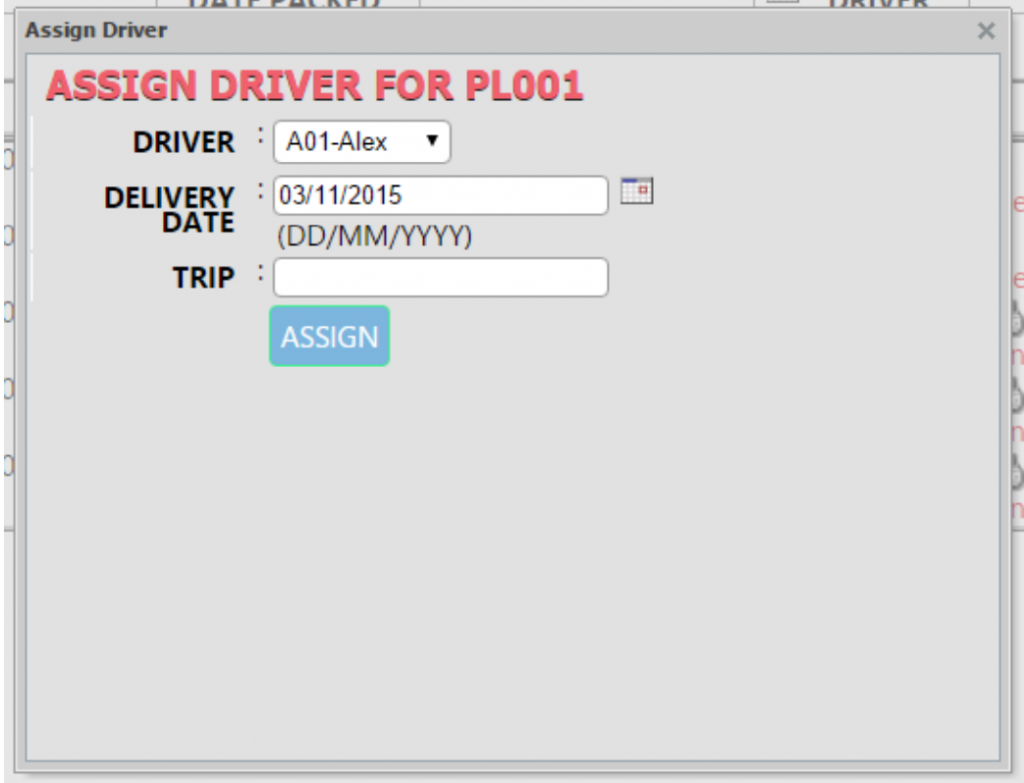
14) After choosing the driver, then you can click ‘Assign’. It will show as per below:
15) Where to create driver’s name? You may go to Maintenance > Detail Profile > Customer Service Profile.
16) You may create driver’s information by clicking on ‘Creating a Customer Service’.