Organise Batches (add, lock, unlock)
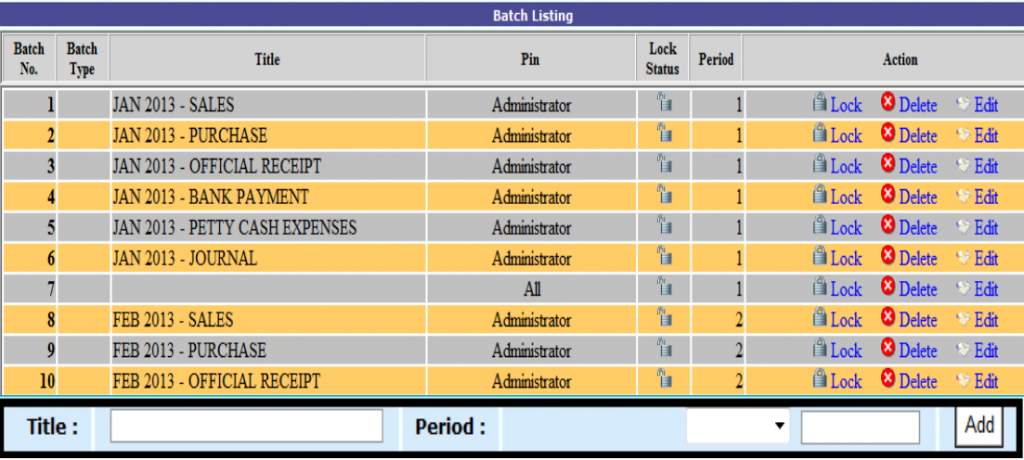
1) Batch Listing Profile
Sample Batch Title (Date followed by Title)
User may wish to apply the following options :-
a) create different batch to record different type of transactions (for easy reference).
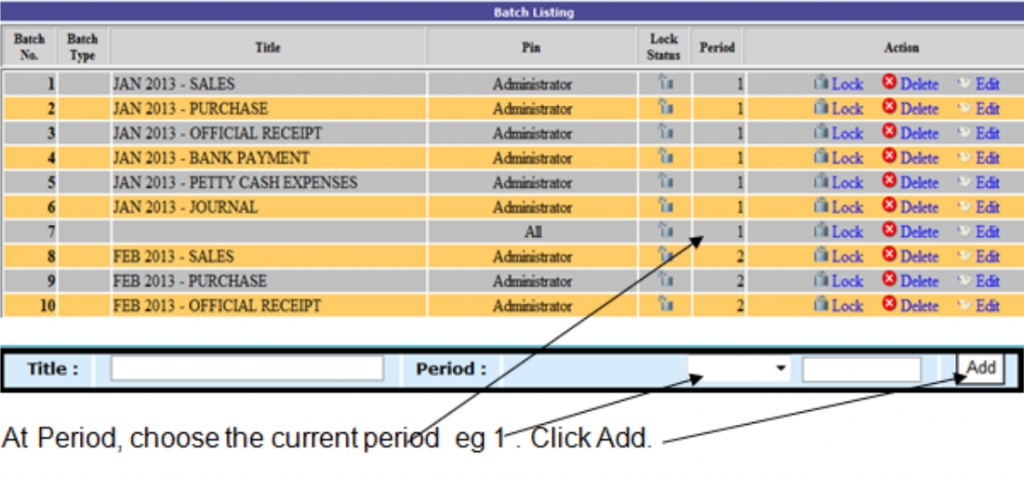
b) insert a blank line i.e. a blank batch number (Sample batch no. 7 – for easy viewing)
c) lock the monthly batches to maintain the same figures in previous period reports eg
– GST Form 5 already submitted to GST Department
– Debtor Statement of Account, Debtor Ageing Report
– Profit & Loss, Balance Sheet, Bank Reconciliation Statement
2) Add new Batch Title
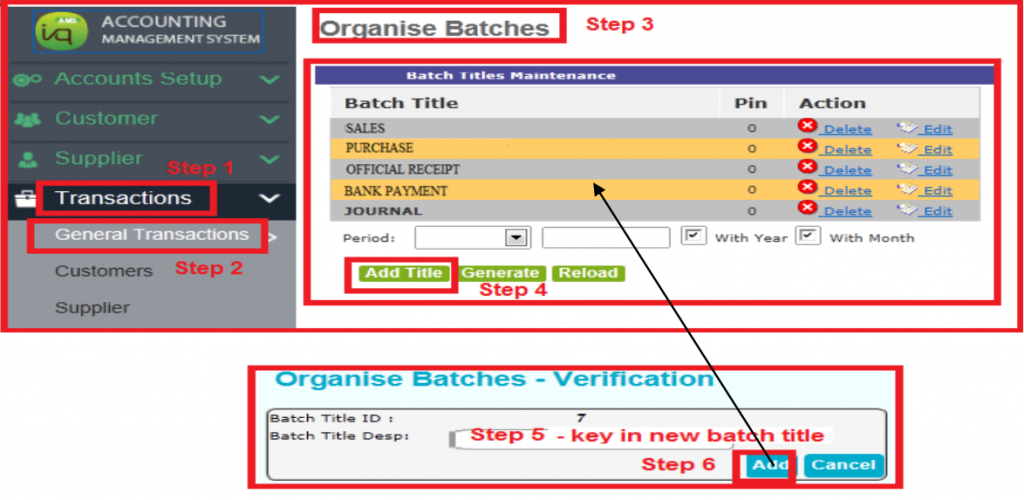
The batch titles at the Batch Titles Maintenance is now a pre-set template.
User can generate the monthly batches by choosing the period.
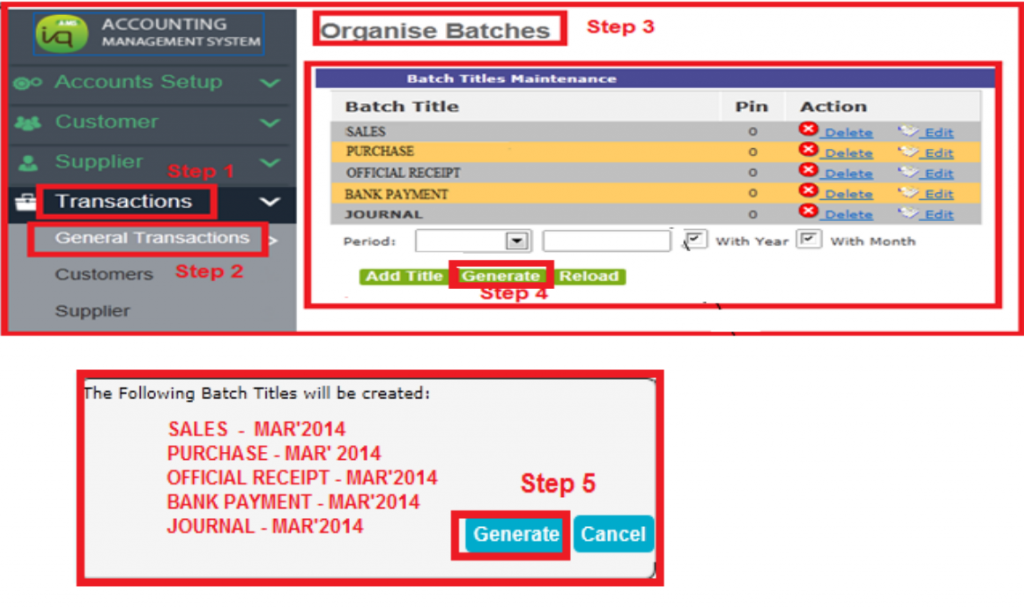
3) Generate a new set of Batch Titles
At Batch Titles Maintenance (pre-set template), the user can generate the monthly batches by choosing the period and click Generate.
After generate, the new batch numbers will appear in the Batch Titles Listing.
4) To insert a blank line at Batch Listing (see batch no. 7)
5) To edit BatchTitle Description at Batch Listing
At Batch Listing, move cursor to the right end. Select Batch no. and click Edit.
6) To delete BatchTitle Description at Batch Listing
At Batch Listing, move cursor to the right end. Select Batch no. and click Delete
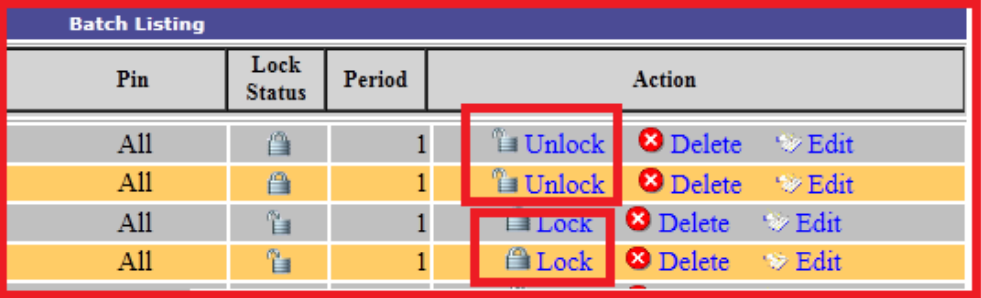
7) Lock Batch
Lock Batch is for security purpose so that all users will not be allowed to modify.
(eg to maintain the same figures in previous period reports, GST Form 5)
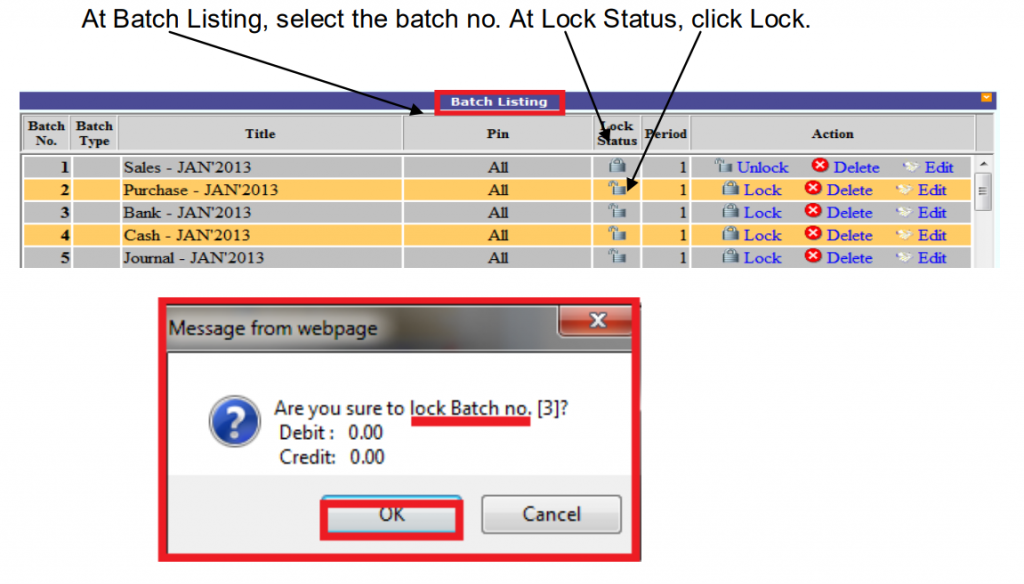
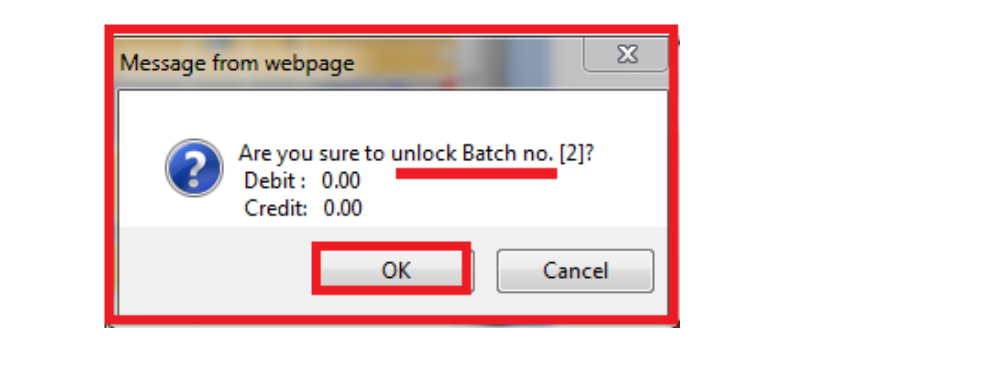
8) To unlock Batches
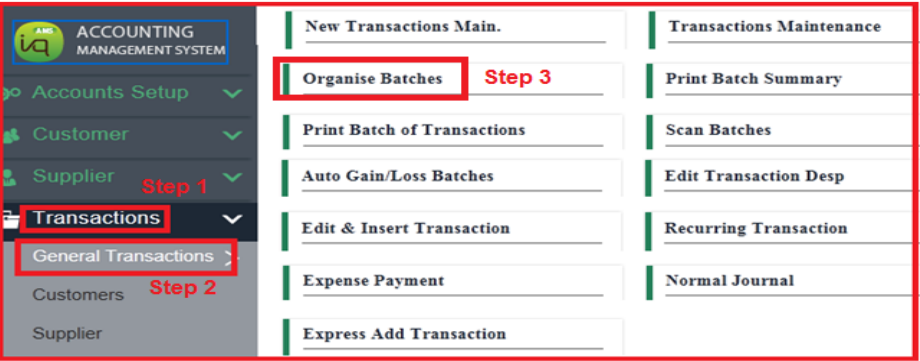
At Transactions, click General Transactions, Organise Batches. Select Lock Batch.
Click OK