Import Excel File to IMS Profile
1) At IMS home page, navigate to General Setup – Import & Export – Import EXCEL File to IMS.
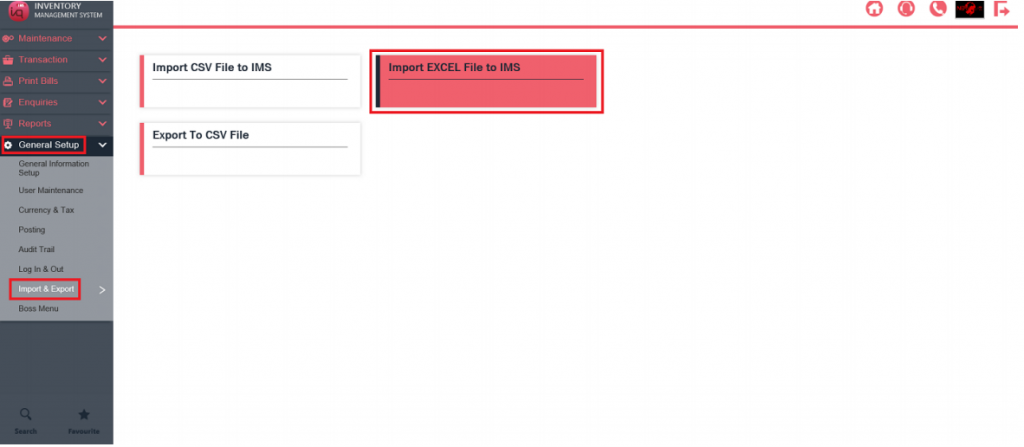
2) Then click item_format.xls and save the EXCEL.
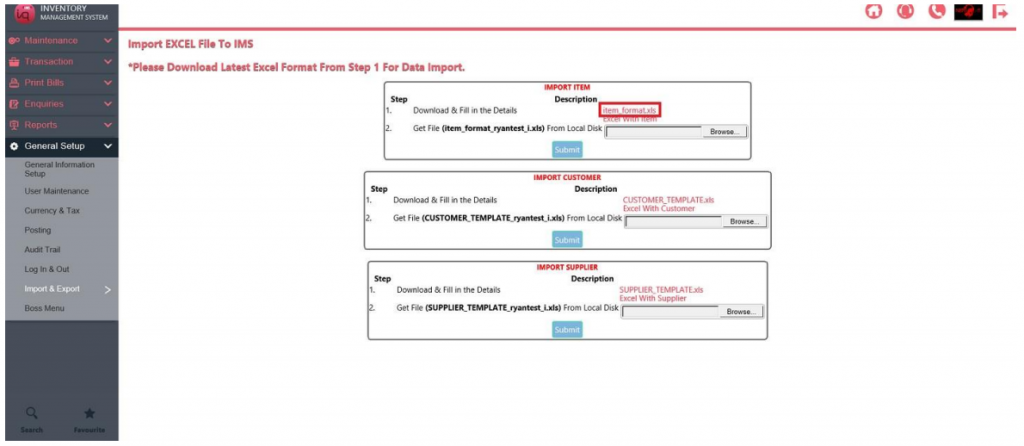
3) Open the excel file. Fill up the necessary fields. Save the file.

4) Now at IMS home page, navigate back to General Setup – Import & Export – Import EXCEL File to IMS. Select browse for the file and click on submit.
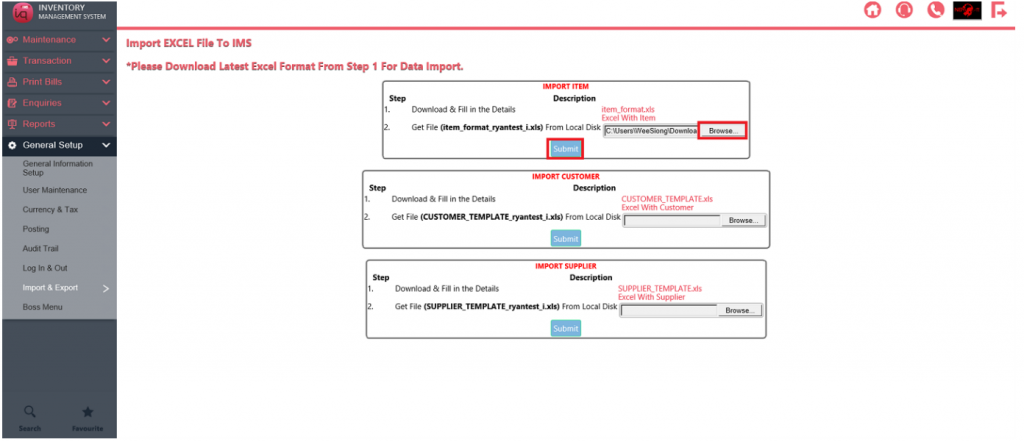
The following message will appear if import is successful.
You have FTP item_format_ryantest_i.xls successfully.
You have import 0 record(s) and update 1 record(s) into Icitem successfully.
You have deleted item_format_ryantest_i.xls successfully.
The details of this item format excel are as followed.
Only Column A needs to be filled for successful creation.
Item_format.xls
a. Column A – ITEM NO (60 Characters Max) (Must be unique)
· Can be alphanumeric
b. Column B to C – ITEM DESCRIPTION (100 Characters Max Each)
c. Column E – BRAND (40 Characters Max) (If applicable)
· For item levelling/categorizing
d. Column G – CATEGORY (80 Characters Max) (If applicable)
· For item levelling/categorizing
e. Column Q – UNIT (15 Characters Max)
· Unit of measurement
· E.g.: PCS, BOX, CTN, SQM
f. Column R – UNIT COST
· Applicable for Fixed costing
· If using any other costing method, i.e. FIFO, Moving Average, please
leave blank
g. Column S – PRICE
· Selling price
h. Column AD – QUANTITY B/F
· Applicable for Fixed costing
· If using any other costing method, i.e. FIFO, Moving Average, please
leave blank